Job application tracker templates: Excel, Sheets and Notion
Three real, free job application tracker templates, one spreadsheet with three tabs, one simple Google Sheet, and one Notion board, with no signup wall.
- Job search
- Job search tools
- Templates
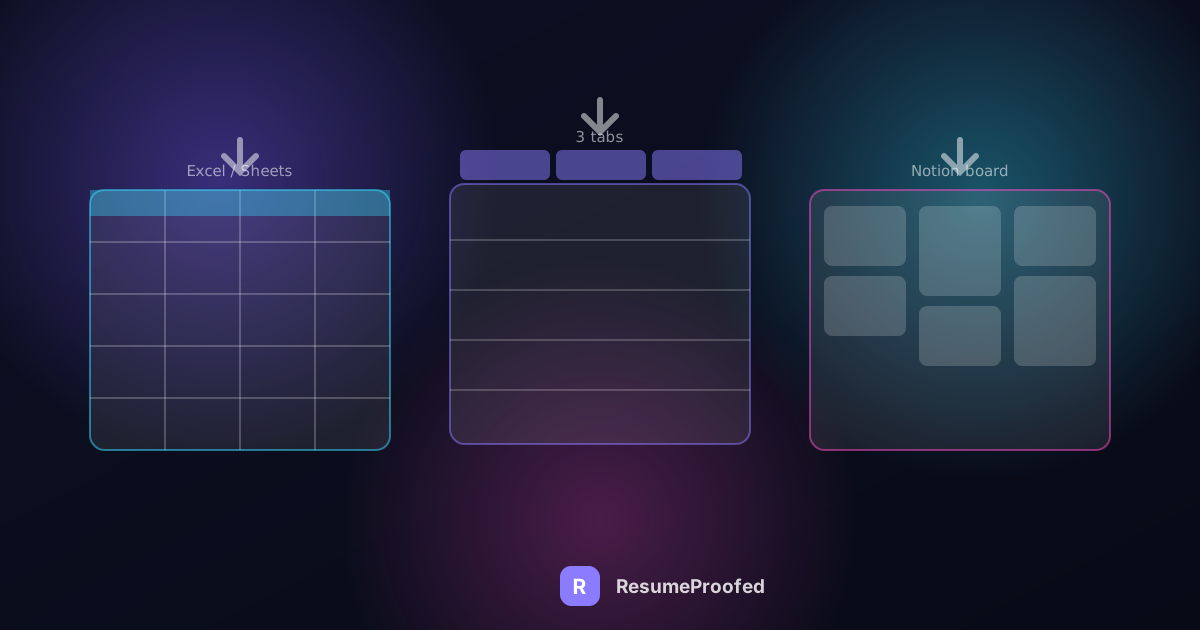
Searching for a job application tracker template turns up dozens of results, and a frustrating number of them are gated behind an email signup, a "join our newsletter" popup, or a template you cannot actually preview until after you have handed over your address. This is a list of three that are not: a spreadsheet with three tabs that works in both Google Sheets and Excel, a simpler single-tab Google Sheet, and an official Notion template with an AI-assisted view, all confirmed downloadable without a signup wall.
The position worth stating early: this is not the same as our guide to what to actually track when job hunting, which covers the strategy question, which fields matter and why. This piece assumes you already know you want a tracker and just want the file, so it goes straight to naming specific templates, what is actually inside each one, and how to pick between the three formats.
First, an honest note about what an "Excel template" usually means now
Most job tracker templates you find in 2026 are not native .xlsx files. They are built in Google Sheets, and the "Excel version" is simply the same sheet downloaded via File, then Download, then Microsoft Excel (.xlsx), a built-in Google Sheets export function that converts the file with its formatting intact. That is not a downgrade or a bait and switch, a Google Sheets template downloaded this way opens and behaves like a normal Excel workbook, formulas included. It does mean that if a page promises a dedicated Excel download with no Google account involved at any step, worth double checking what you are actually getting before you search further for a "pure" Excel option that mostly does not exist for this particular use case.
Template 1: the three tab spreadsheet (Google Sheets and Excel)
Spreadsheet Point's job tracker template is a genuinely free, no-signup Google Sheets template split across three tabs, which is more structure than most single-tab trackers offer:
- Job Details: company name, position, salary range, application deadline, source link, employment type
- Pre-Interview: application date, status, which documents you sent, hiring manager contact, follow-up deadline
- Interviews: date, time, format, notes, outcome
Splitting the tracker this way solves a real problem with single-tab trackers: a job you have not heard back from yet and a job mid-interview loop need different fields visible, and cramming both into one wide table means scrolling past a dozen empty interview columns for every application still sitting in "applied." Three tabs keep each stage's relevant fields close together.
To use it in Excel rather than Google Sheets, make your own copy of the Google Sheet first, then use File, Download, Microsoft Excel (.xlsx), per the note above.
Template 2: the simple single tab tracker (Google Sheets)
If three tabs is more structure than your search needs right now, especially early on when you might have five or six applications total, BeamJobs' Google Sheets tracker is a single-tab alternative covering company name, job title, job link, salary, contact details, status, date applied, and deadline in one continuous table, with optional columns for employment type, location, interview stage, and notes if you want to add them yourself.
It also includes two small automations worth knowing about before you rely on them: a "days left to apply" column calculated from the deadline you enter, and an automatic reminder note that appears when you change a job's status to "Interview Scheduled" and pick a date within the next two days. Neither replaces checking your tracker regularly, but both catch the specific failure mode of forgetting a deadline is close.
Template 3: the Notion board (with AI)
Notion's own official job application tracker template, built by Notion itself rather than a third party, holds a 4.85 star rating across more than 800 reviews on Notion's template marketplace, making it one of the more heavily used options in this category. It includes AI-assisted features alongside the standard database view, and reviewers specifically call out its colour coding for approaching deadlines and how easily it can be customised without breaking the underlying structure.
Notion's format suits a different habit than a spreadsheet does: if you already keep notes, a calendar, or other planning in Notion, a tracker inside the same workspace means one less tool to check daily. If your job search lives entirely in a browser tab full of spreadsheets already, adding a new tool with its own login is more friction than benefit, and one of the two spreadsheet options above is the better fit.
Choosing between the three
| Template | Format | Tabs/views | Best if |
|---|---|---|---|
| Spreadsheet Point tracker | Google Sheets, Excel via download | 3 (Job Details, Pre-Interview, Interviews) | You are applying broadly and want interview-stage detail separated from early-stage applications |
| BeamJobs tracker | Google Sheets | 1 | You want the simplest possible start, or are applying to a small number of roles |
| Notion official tracker | Notion | Database with AI view | You already use Notion for other planning and want one tool, not several |
A worked routine: setting up the three tab tracker in ten minutes
- Open the Spreadsheet Point template and make your own copy rather than editing the shared original, using the template's own copy function so your data is private and yours to edit freely.
- Backfill only your active applications, not your full job search history. If you have been searching for months, resist the urge to reconstruct every dead lead, start from what is genuinely still open.
- Fill the Job Details tab first, one row per application, including the source link so you can find the original posting again if a recruiter references a detail you no longer remember.
- Move a row's core details into the Pre-Interview tab only once you apply, not before, so the Pre-Interview tab always reflects applications actually sent rather than jobs you were merely considering.
- Only touch the Interviews tab once a company schedules one. Keeping it empty for most rows is a feature, not a gap, since a mostly-empty Interviews tab is an honest, at-a-glance read on how far your search has actually progressed.
- Set a weekly recurring reminder to review the whole tracker, not just check it when a new email arrives. The Pre-Interview follow-up dates only help you if you actually look at them on a schedule.
What to add if you're applying at high volume
All three templates above are built around a moderate search, a handful to a few dozen applications in flight at once. If your search is bigger than that, our guide to how many jobs to apply for each week covers the volume side of the question, but the tracker itself also needs one adjustment at higher volume: a conversion column.
Add a single column, in any of the three templates, that records which resume version or which specific angle you used for each application. On a spreadsheet this can be as simple as a short code, "technical" versus "leadership" versus "generalist," matching however you already vary your resume. In Notion, this can be a tag or select property on the same database. The point is not busywork, it is that once you have thirty or more rows, this is the only column that lets you look back and see which version of your resume is actually converting into interviews versus which one is quietly getting ignored. Without it, a large tracker just becomes a long list of outcomes with no way to learn from the pattern inside it.
This matters more at high volume specifically because the sample size finally gets large enough to trust. Five applications teach you nothing reliable about which resume angle works better, the difference could easily be which companies you happened to apply to. Thirty or more applications split across two or three resume versions starts to show a real pattern, but only if the tracker recorded which version went where in the first place.
A note on keeping a shared template private
Every template linked above starts as a shared, public original that many other job seekers are also copying from. Before you enter a single real company name or contact detail, make your own private copy first, most of these sites include a dedicated "use template" or "make a copy" action for exactly this reason rather than expecting you to edit the shared file directly. This is worth stating plainly because it is an easy step to skip when you are moving quickly through a job search, and it is the only step that keeps your actual application data from living inside a document other people can also open.
Common questions
Is there a genuinely free job application tracker template with no email signup?
Yes. The Spreadsheet Point three-tab tracker, the BeamJobs single-tab Google Sheet, and Notion's own official job application tracker template are all accessible without providing an email address, based on direct review of each page.
Can I use a Google Sheets job tracker template in Excel?
Yes. Make your own copy of the Google Sheet, then use File, Download, Microsoft Excel (.xlsx) to export it as a standard Excel workbook with formatting and formulas intact. Most templates marketed as "Excel templates" for this specific use case work this way rather than starting as a native Excel file.
What columns should a job application tracker template actually have?
At minimum: company name, job title, a link to the original posting, date applied, current status, and a follow-up date. Our companion guide on what to track covers why these specific fields matter and which additional ones are worth adding as your search grows.
Is a Notion template better than a spreadsheet for tracking job applications?
Neither is objectively better, it depends on your existing habits. Notion suits people who already plan other things inside Notion and want one workspace; a spreadsheet suits people who are comfortable with rows and columns and do not want to learn a new tool's interface partway through a job search.
How many tabs or columns does a job tracker actually need?
Fewer than most templates include by default. A single tab with six or seven columns, company, role, link, date applied, status, and follow-up date, covers the three questions a tracker actually needs to answer. Additional tabs, like a separate Interviews tab, earn their place once you are managing several interview loops at once, not before.
Should I track jobs I am only considering, not yet applied to?
Some trackers include a "saved" or "interested" status for this, and it can be useful for a shortlist, but keep it visually distinct from applications actually sent. Mixing considered jobs with applied jobs in the same status column is one of the more common ways a tracker stops answering "where do things actually stand" clearly.
Where ResumeProofed fits, and where it doesn't
ResumeProofed does not track applications, and pointing you at three separate, genuinely free templates above rather than building a weaker fourth one is the honest call here. What it can do is handle the step that happens right before a row goes into whichever tracker you pick: confirming real facts about your career once, then generating a resume and cover letter tailored to a specific job ad's language each time you apply, so what you log in your tracker is backed by an application that was actually worth sending.
Try ResumeProofed free: two tailored applications on the house, no card required.